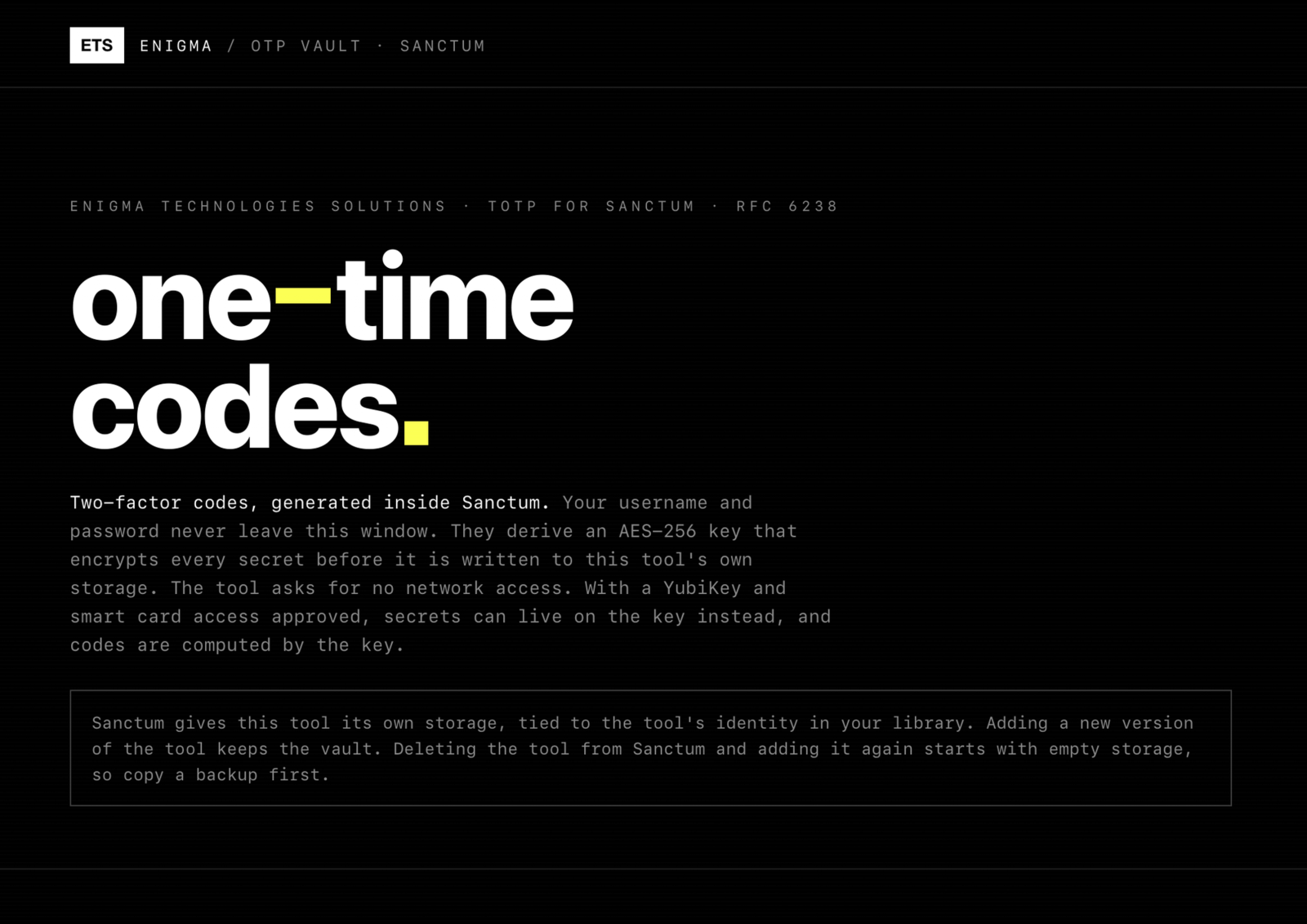
Time-based one-time codes (TOTP) kept in Sanctum storage and optionally on a smart card.
A two-factor code generator (TOTP, RFC 6238) in a single file. Keys live in an encrypted vault inside the tool's own storage, protected by a username and password. With a YubiKey and smart card access approved for the OATH applet, keys can instead be written to the key, which computes each code and never gives the secret back. The tool asks for storage and, only if you use it, the OATH smart card applet. It asks for no network access.
Install opens Sanctum, which shows this tool and what it asks for, then waits for your click. Nothing is installed from the page itself. Sanctum not installed? Get Sanctum first.
Verified means the publisher is who it says and the bytes have not changed. It does not mean safe. A signature never grants access: every tool still starts with nothing approved, and you approve each capability yourself.
Screenshots
What is new
1.0.2 2026-10-02
Added. Time-based codes for SHA-1, SHA-256 and SHA-512 keys, checked against the RFC 6238 test vectors.
Added. An encrypted software vault, unlocked with a username and password and shown with an eight-emoji fingerprint so you can recognise a correct login before anything is decrypted.
Added. Optional YubiKey mode that keeps keys on the OATH applet of the key.
Added. Backup and restore through the clipboard.
Added. First release signed by Enigma Technologies Solutions.
Manual
What it does
OTP Vault generates the six-digit codes that sites ask for as a second step when you sign in. You add the key a site gives you, and the vault shows the current code for it.
What it asks Sanctum for
Storage. The encrypted vault lives in this tool's own storage. Deleting the tool and adding it again gives it new, empty storage, so make a backup first.
Smart card, OATH applet (a0000005272101). Optional. It is only used if you keep keys on a YubiKey.
It asks for no network access and no other device. You approve each of these yourself the first time you open the tool.
Create a vault
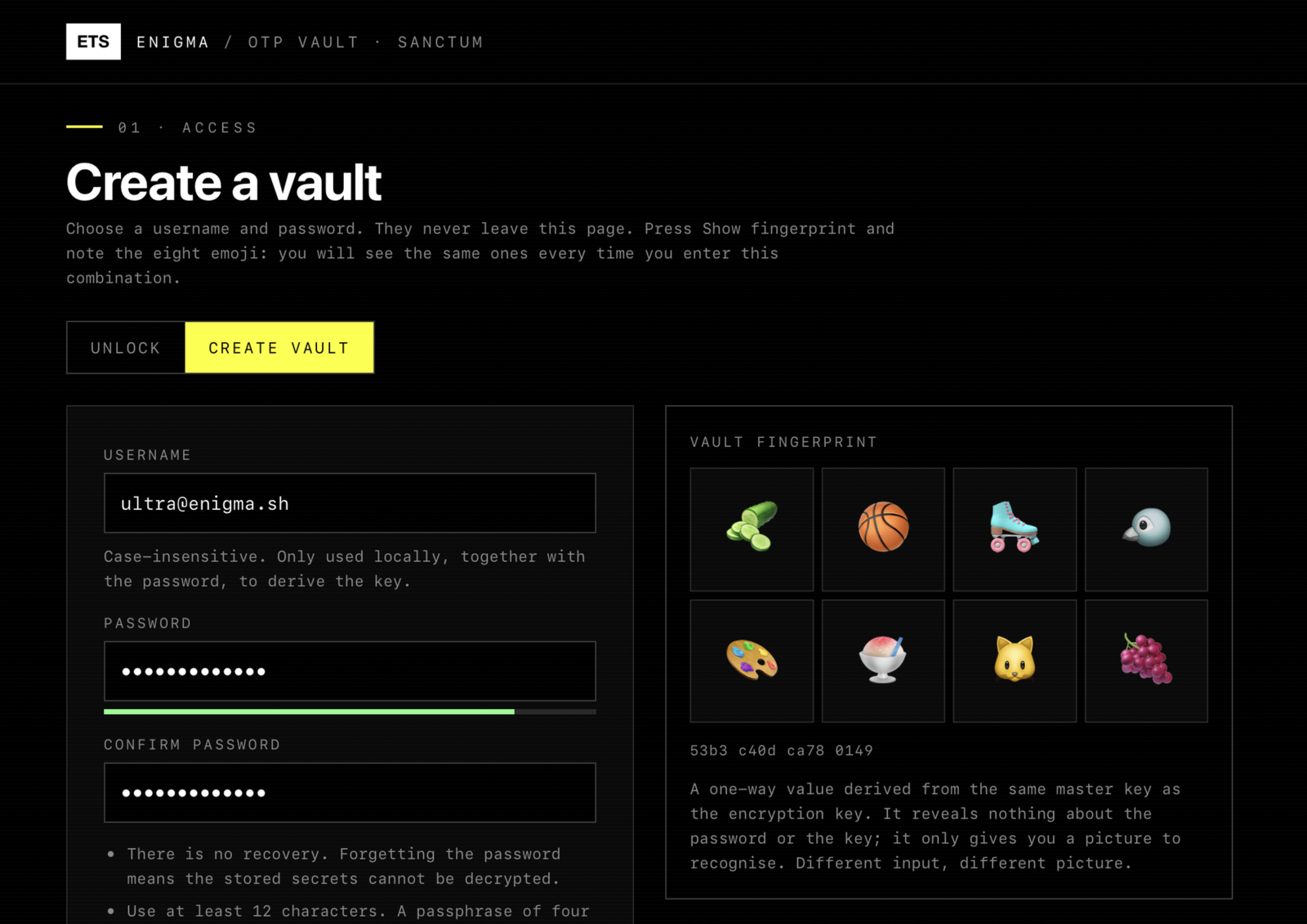
Choose a username and a password, then press Create vault. The vault is encrypted with a key made from both. The tool also shows a fingerprint of eight emoji. Note it down: next time you unlock, the same username and password show the same eight emoji, and anything else means you mistyped.
There is no password reset. If you forget the password, the vault cannot be opened.
Add a key
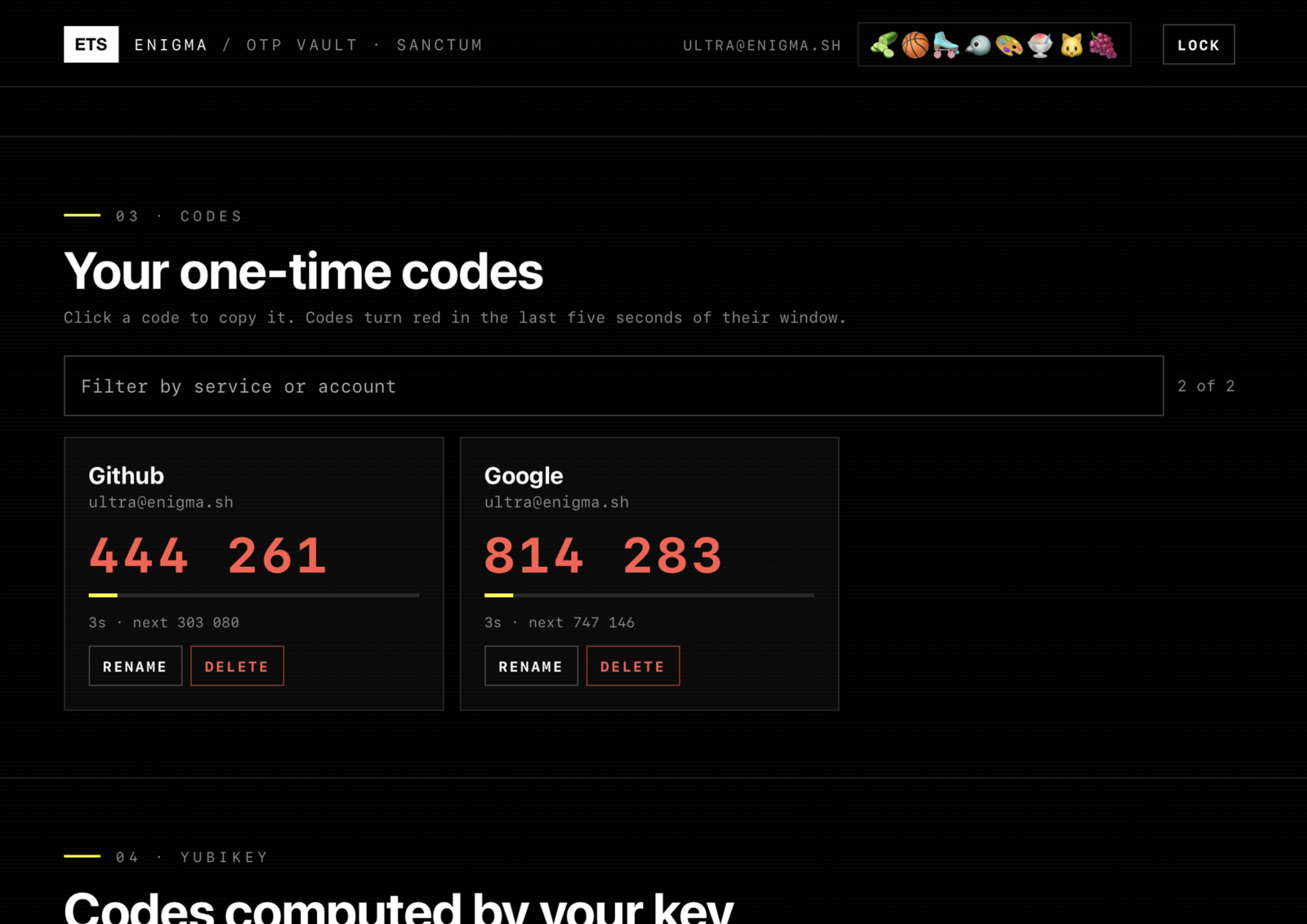
Choose New authenticator key. Paste the otpauth:// link a site gives you, or enter the secret and the account by hand. The code appears next to the account name and refreshes on its own. Click a code to copy it.
Use a YubiKey
If you approved smart card access for the OATH applet, you can write a key to your YubiKey instead of the vault. The secret goes to the key once and cannot be read back. Each code is computed on the key. Nothing about these accounts is stored in the tool's storage. If an account needs a touch, the key blinks when you ask for its code.
Back up and restore
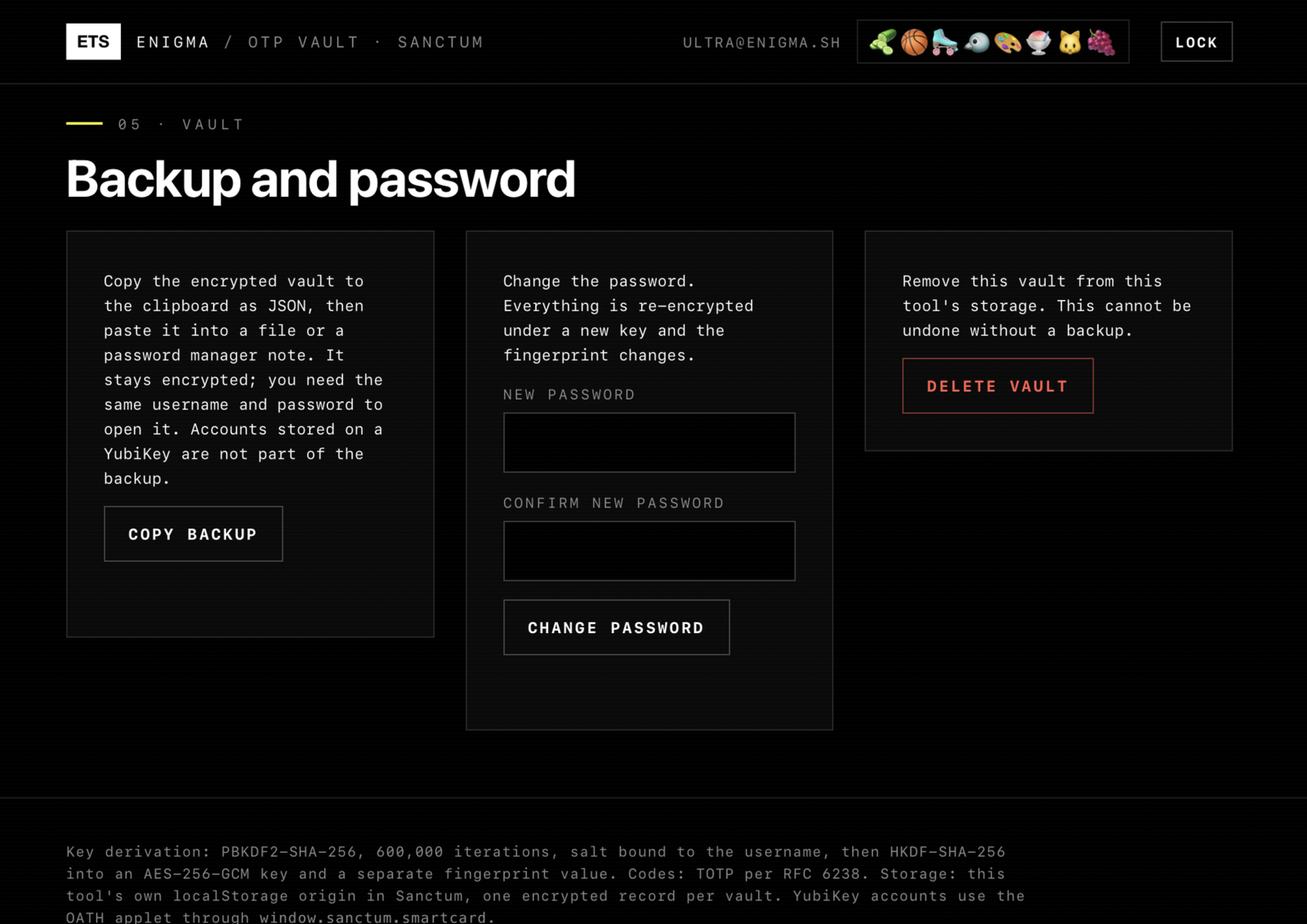
This tool does not save files itself, so Copy backup puts the encrypted backup on the clipboard. Paste it into a safe place. Restore pasted backup accepts pasted text, and Choose file accepts a file. A backup is still encrypted, so it is only as safe as your password.
Good to know
Codes from the vault are computed in the tool window. They do not leave it unless you click one to copy it.